Interactive guide
How Video Maker works
From idea to MP4 in five stages. Below, a tour of each path with real screenshots of the app (shown with its Spanish interface).
The pipeline
-
Idea & script
Tell the producer what video you want. With Claude Code or OpenRouter it drafts or polishes the script, and you approve it before a single minute of rendering.
-
Voice
The voice-over is synthesized on your Mac with Spanish Piper voices (es_AR, es_ES, es_MX) — or you use your own recording. whisper.cpp transcribes it word by word.
-
Scenes
For motion graphics the AI proposes the storyboard and the studio animates every scene with your brand. With raw footage it trims silences, picks B-roll by what is being said and adds kinetic captions.
-
Music
A brand track, cuts on the beat and automatic ducking: the music dips by itself whenever the voice speaks, with at least 15 dB of headroom.
-
Render
Remotion or HyperFrames draw the frames, FFmpeg mixes and masters to −14 LUFS, and an automatic review checks levels, black frames and captions before handing you the MP4.
Before you start
- 1 Install the app Drag it to Applications and open it with one extra step (it is not signed by Apple).
- 2 First run It downloads the transcription model, the voices and the rendering browser (≈879 MB).
- 3 Connect the AI Claude Code with your subscription or OpenRouter with your key and prepaid credit.
Both paths, step by step
Pick a path and move with the buttons or the arrow keys.
Motion graphics: from script to animated video
Nothing to record. You write the script, add a few photos if you like, and the studio designs animated scenes with your brand, adds the voice and the music and cuts to the beat.
-
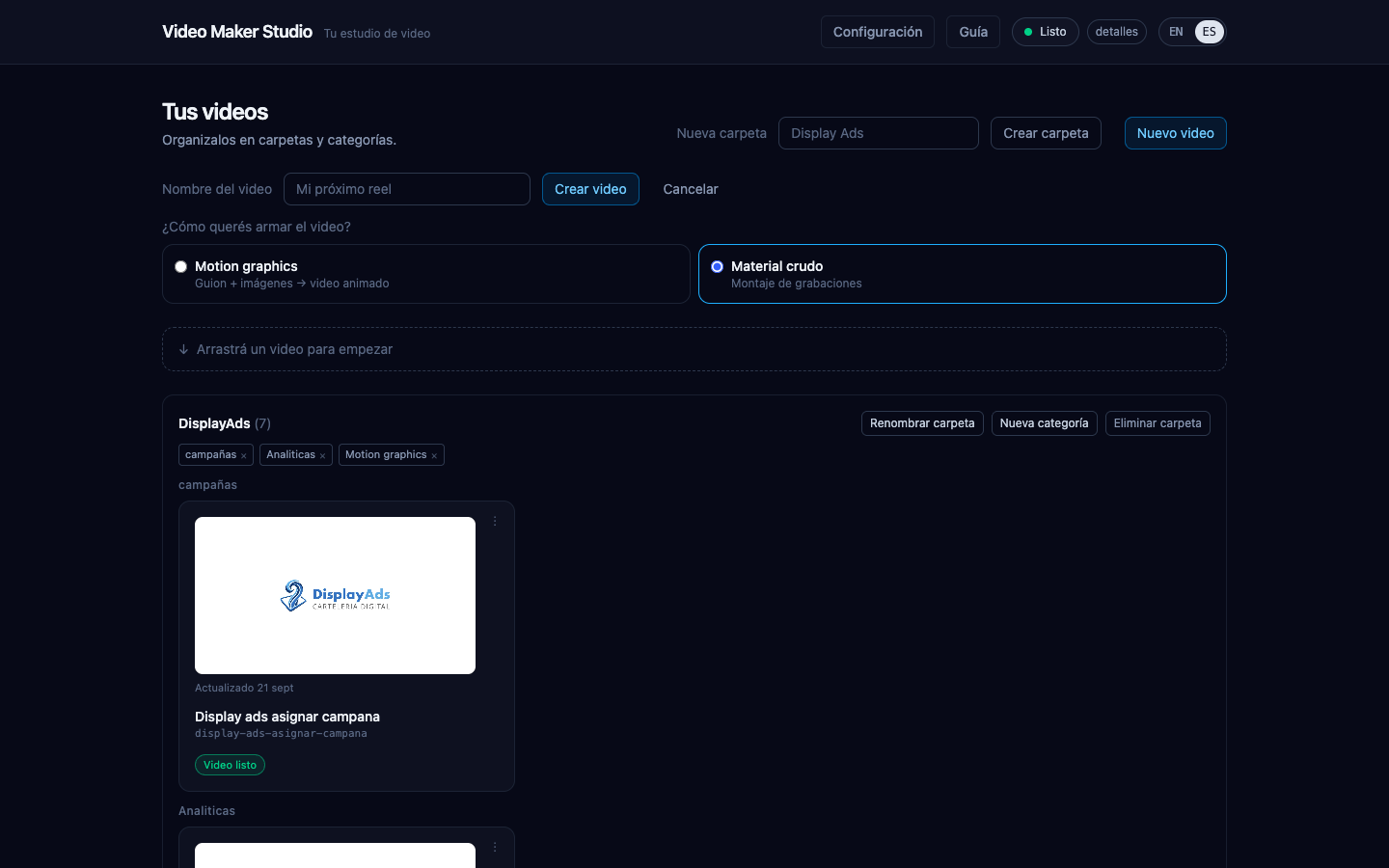
Step 1
New video → Motion graphics
From "Your videos" you tap "New video" and pick the motion graphics path.
-
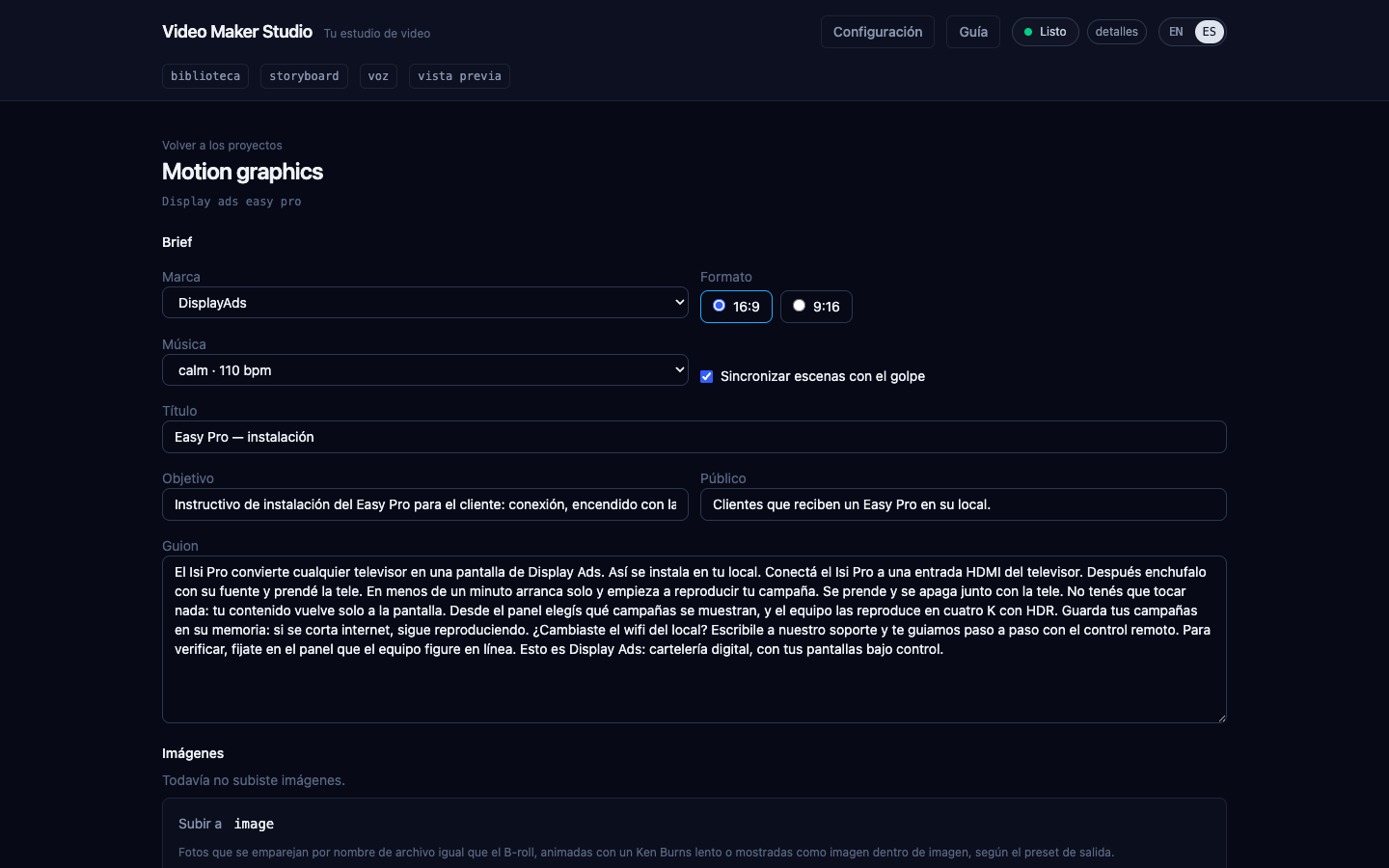
Step 2
Fill in the brief
Brand, format (16:9 for YouTube or 9:16 for reels), music, goal, audience and script. If you add photos, write one line about what each one shows: the AI picks them by that description.
-
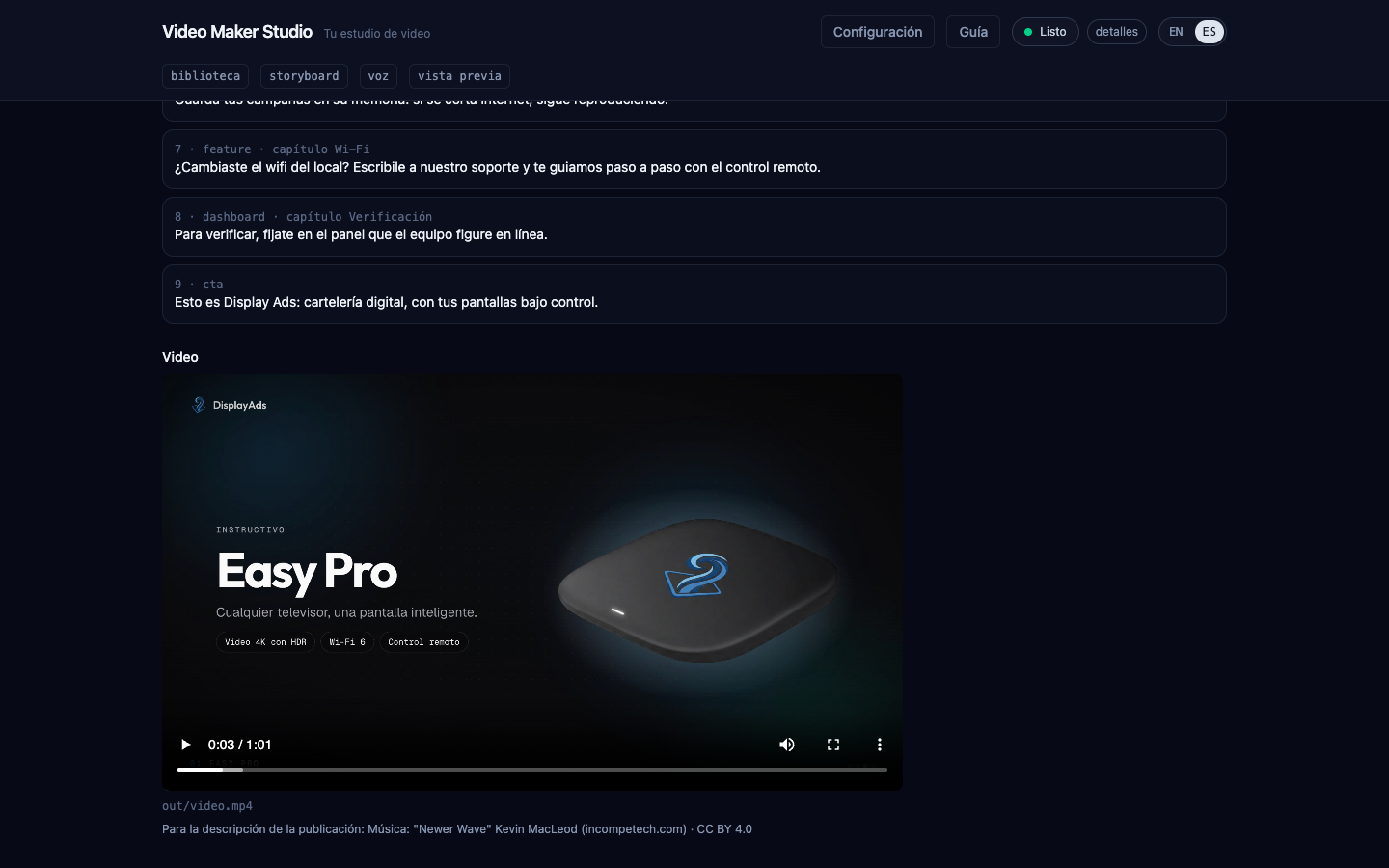
Step 3
Storyboard and video
"Build storyboard" asks the AI for the scenes; you review them. "Make video" synthesizes the voice, prepares the music and renders while showing progress. The music credit is ready for your description.
-
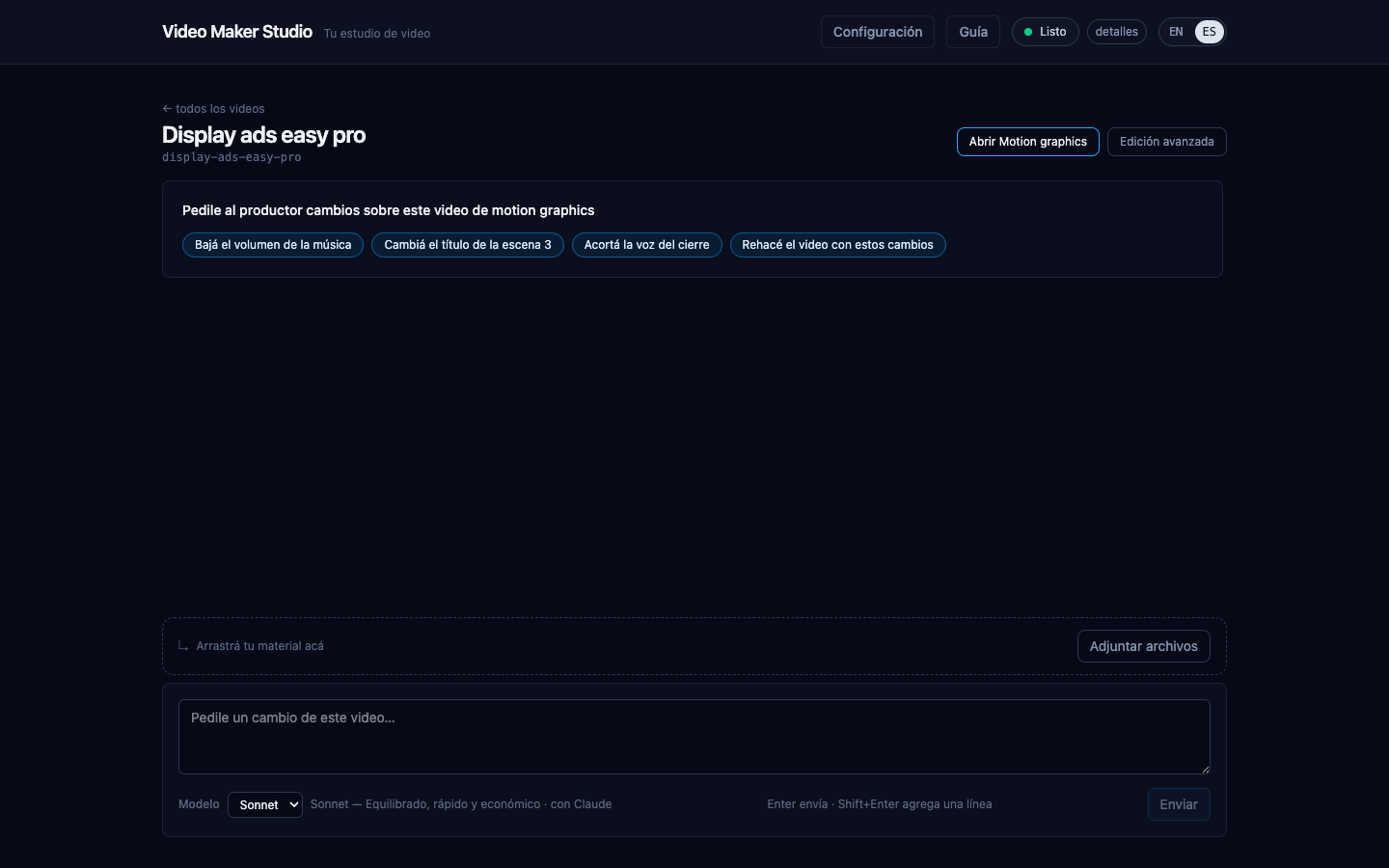
Step 4
Adjust it by chatting
"Adjust with the producer": ask "lower the music" or "change the title of scene 3" and it redoes only what changed. Then publish it to YouTube from the app.
Raw footage: your recordings, edited
Bring screen recordings, camera clips, photos or music, and the producer builds the edit: it trims silences, places B-roll, adds captions and the voice-over.
-
Step 1
New video → Raw footage
The same "New video", choosing the recordings edit.
-
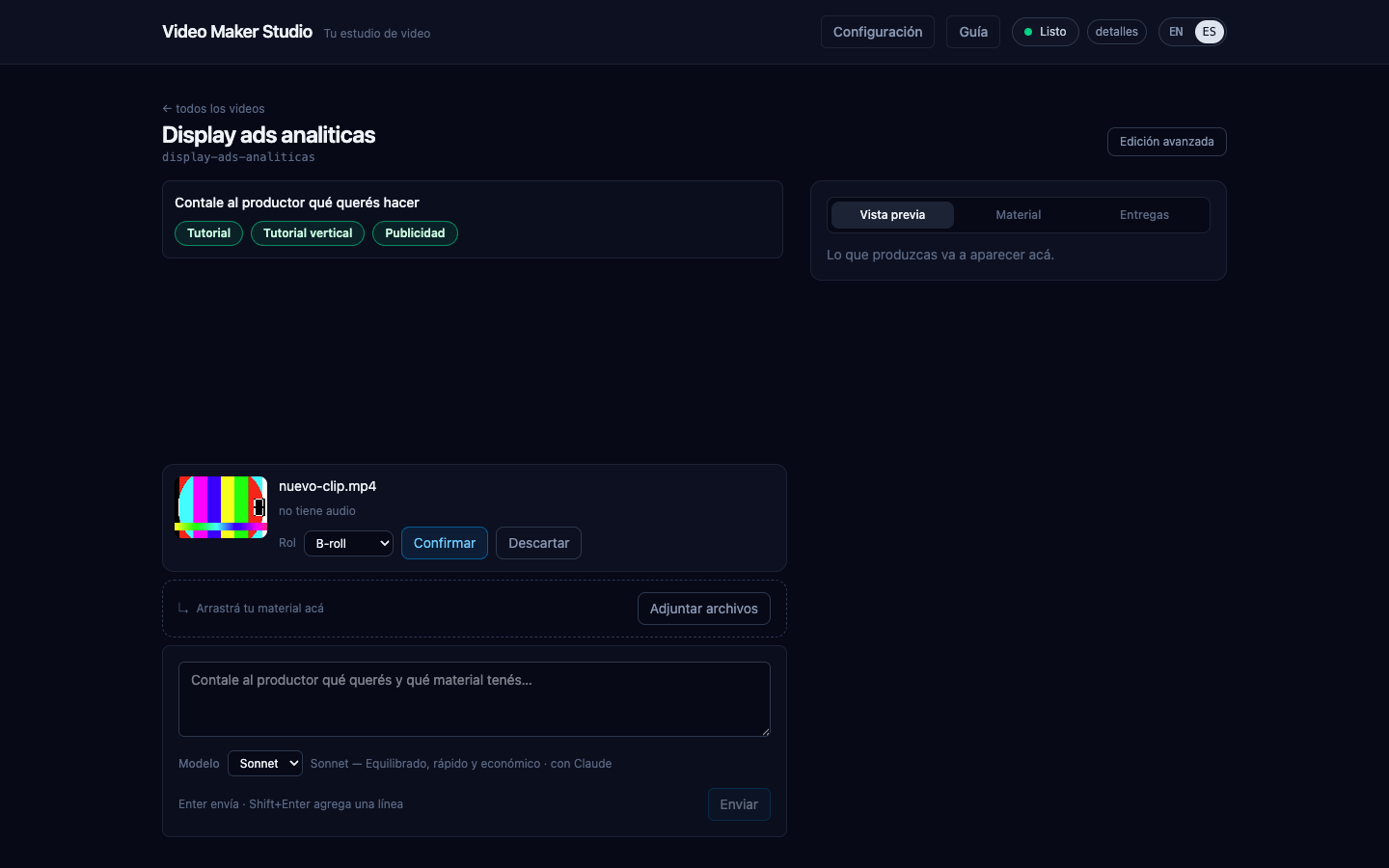
Step 2
Drop your files
Drag your material onto the conversation. For each file the producer suggests a role (A-roll, B-roll, image, music, logo) and you confirm it.
-
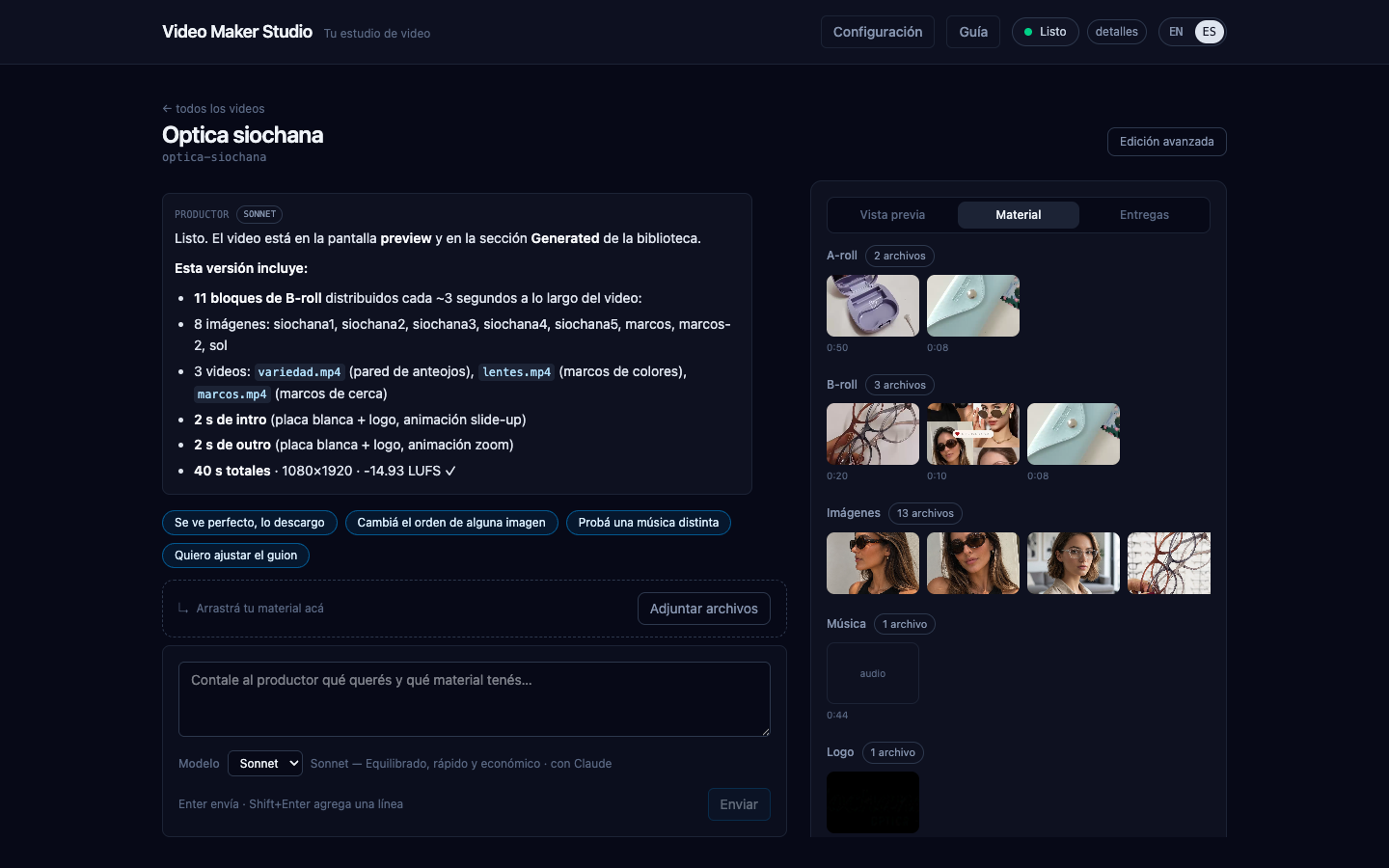
Step 3
Review your material
The "Material" tab groups everything confirmed by category, with thumbnail and duration. Missing footage? The producer finds freely licensed media on Wikimedia Commons and NASA.
-
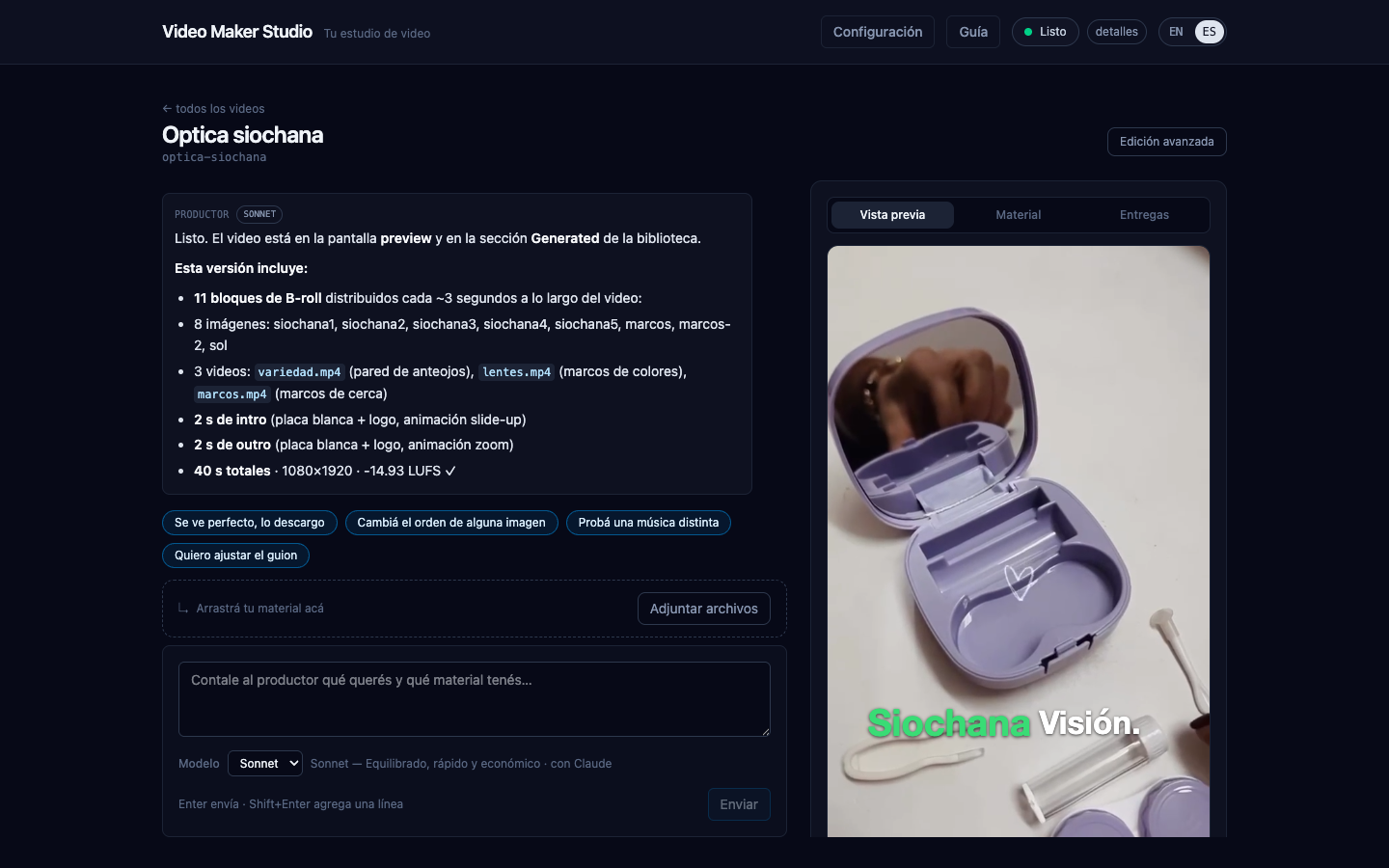
Step 4
Chat and watch the preview
Pick a recipe (Tutorial, Vertical tutorial or Product ad) or just describe the video. The producer writes the script, the cuts and the voice, and the preview shows the render as soon as it finishes.
-
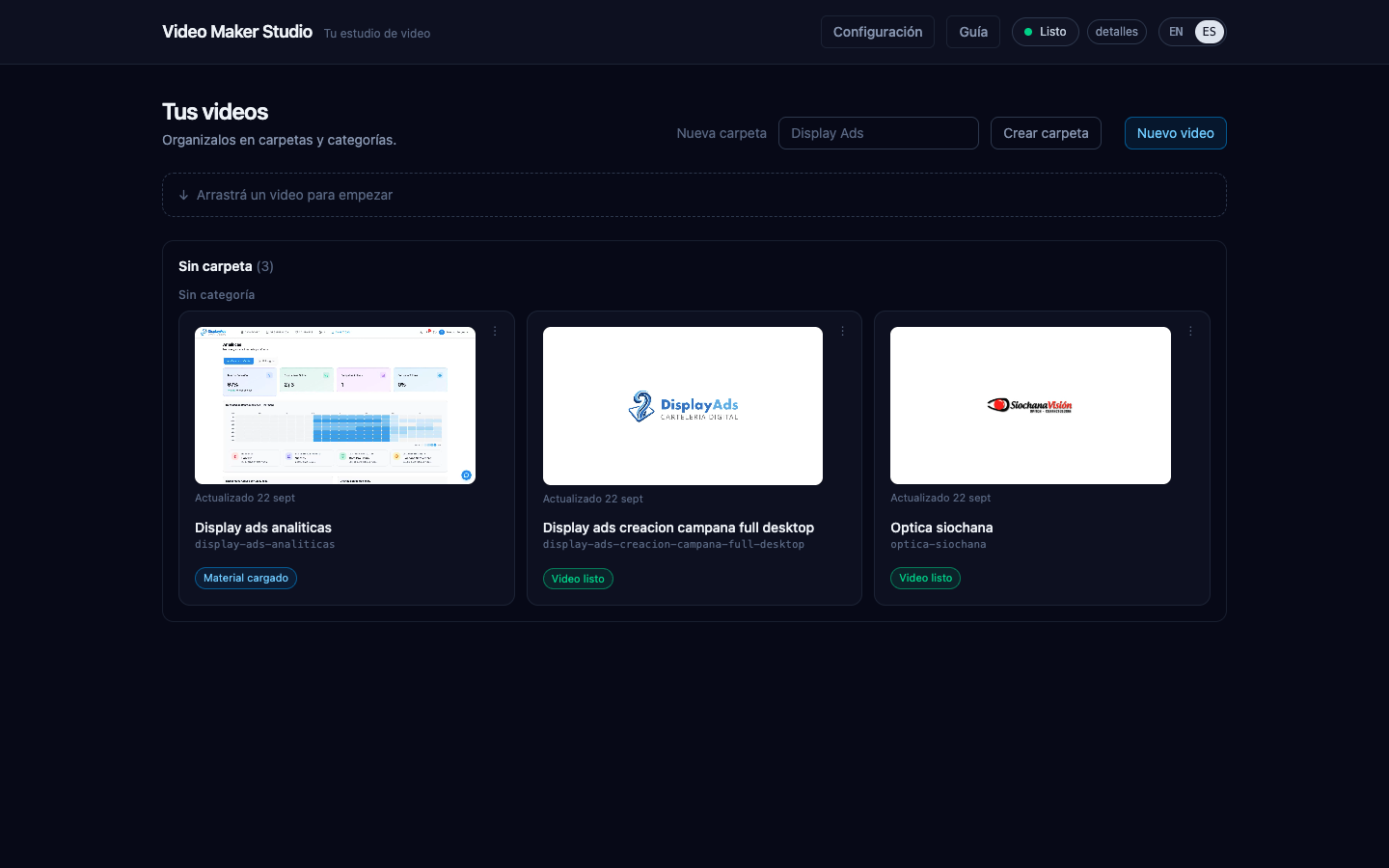
Step 5
Deliveries and publishing
Every confirmed render lands in "Deliveries" without overwriting the previous ones, ready to open in Finder or publish to YouTube. Your projects show up with their real thumbnails.
What runs where
| Stage | Where it runs | With what |
|---|---|---|
| Conversation, script and storyboard | On the AI you connected | Claude Code (your subscription) or OpenRouter (your key) |
| Transcription | On your Mac | whisper.cpp with the large-v3-turbo model |
| Voice | On your Mac | Piper voices on sherpa-onnx (optional: ElevenLabs with your key) |
| Scenes and rendering | On your Mac | Remotion + headless Chrome (raw footage) · HyperFrames + GSAP (motion graphics) |
| Mixing, mastering and review | On your Mac | FFmpeg / ffprobe |
| Publishing | On your channel | YouTube Data API v3, only if you connect your account |