Using the studio
Every video lives in its own project, with its material and its conversation with the producer. Screenshots show the app with its Spanish interface; the app also has an English mode.
Two paths: motion graphics or raw footage
When you tap "New video" you choose how to build it. Motion graphics: you do not record anything, you write the script and the studio designs animated scenes with the brand (titles, devices with their screens, phones, dashboards, photos), adds the voice, picks the music and cuts to the beat. Raw footage: the classic edit of your recordings, with the producer.
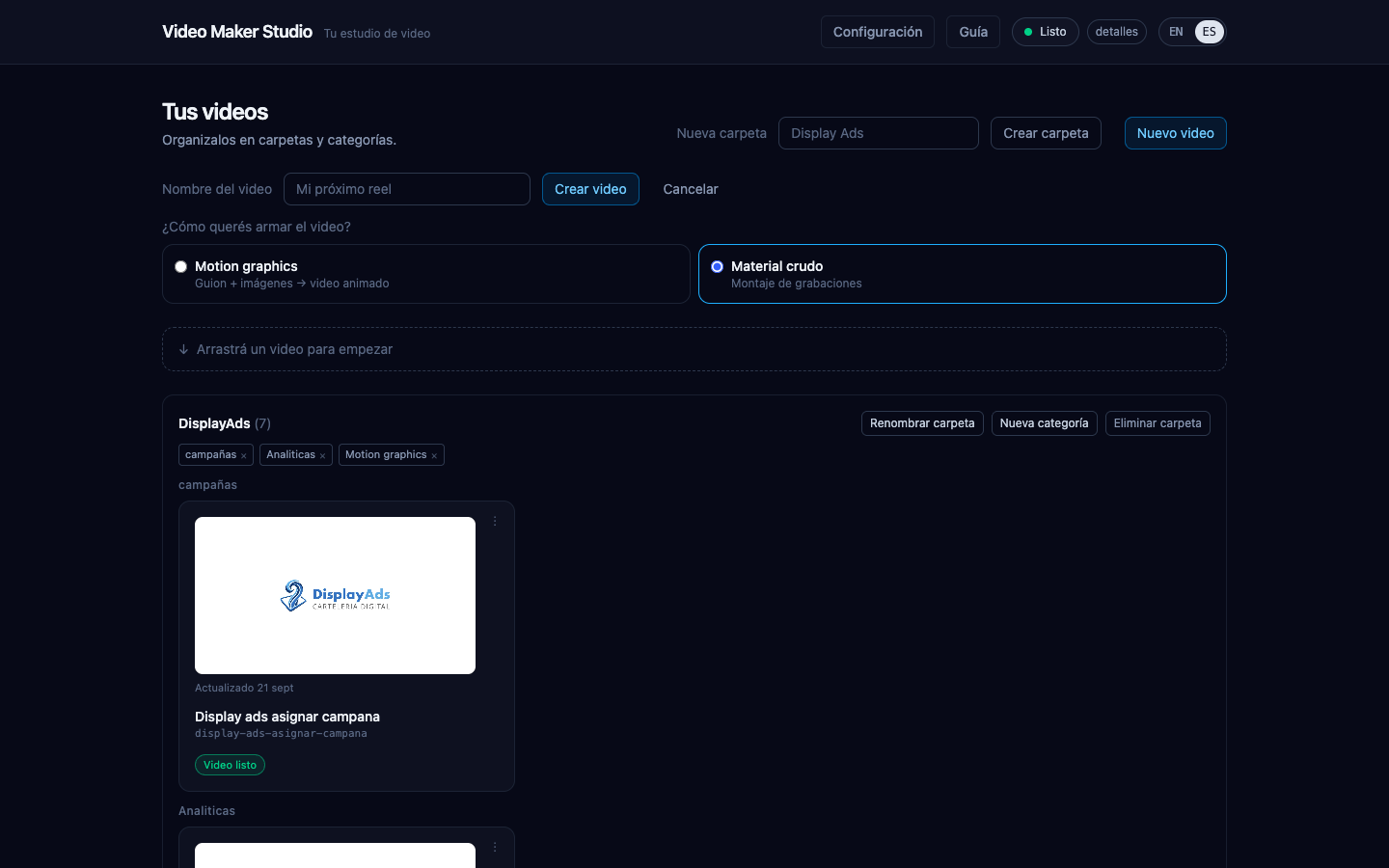
Motion graphics videos
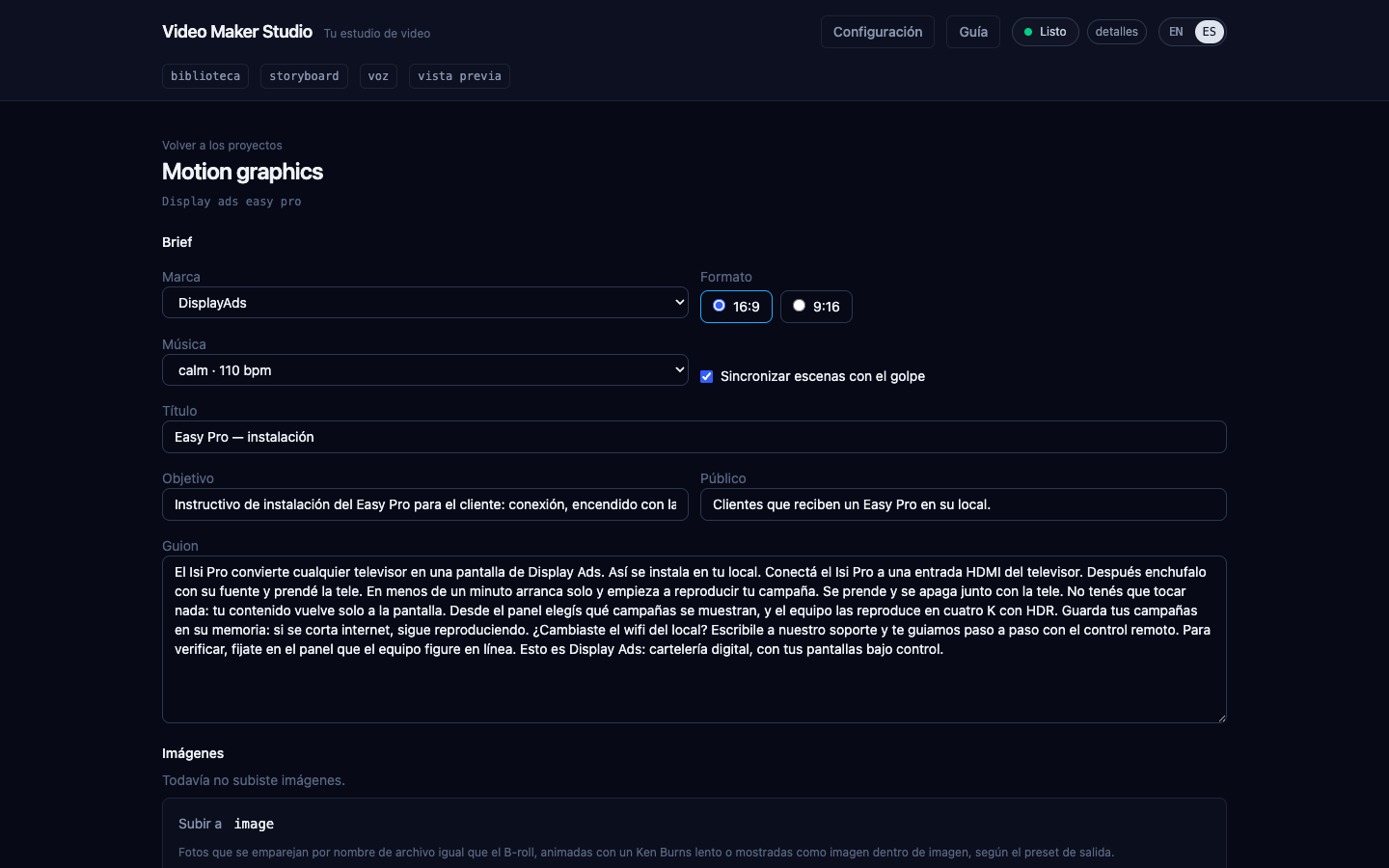
Every motion graphics video has its own Motion page. There you fill in the brief: the brand, the format (horizontal 16:9 or vertical 9:16 for reels), the music (automatic, a brand track or no music), the goal, the audience and the script. If you add photos, write one line about what each one shows: the AI does not see them, it chooses by that description.
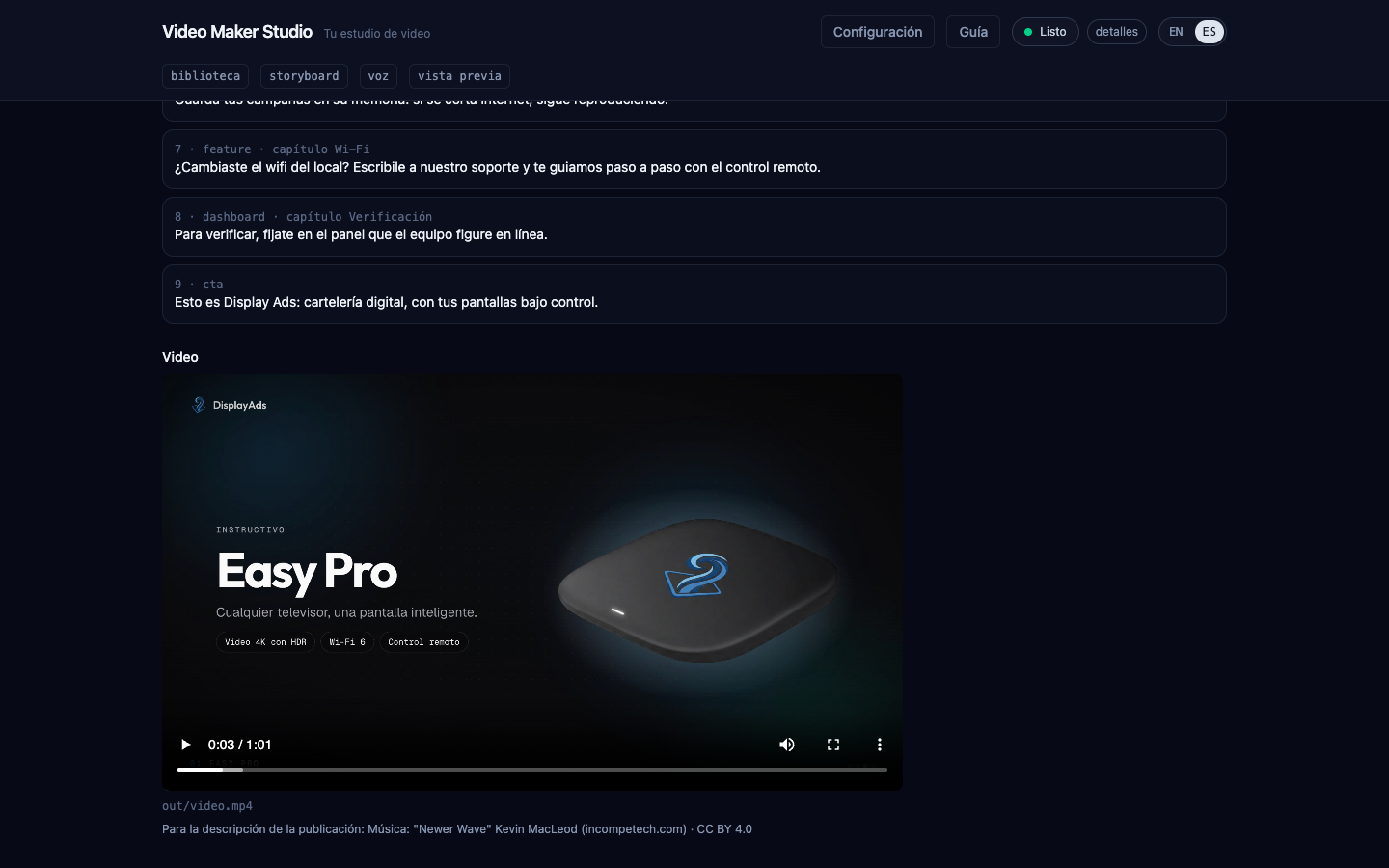
"Build storyboard" asks the AI for the scenes (it takes a few minutes); review them before going on, because changing the script and rebuilding them is cheap. "Make video" synthesizes the voice, prepares the music and renders, showing progress. The video stays in the project and shows up every time you open the page. You can also ask the producer for it in the conversation.
Brands: your identity in every video
The Brands link in the header lists the included brands and yours. "New brand" builds
one from scratch; "Duplicate" starts from an existing one (the included ones are read-only). The editor has
a section per topic — identity, logo, colors, fonts (Google Fonts too, downloaded into the brand), voice,
music, photos and products — and a live preview of the opening and the closing: colors update instantly and
the logo or the fonts recompose the preview. A deleted brand goes to brands/.trash, it is not lost.
Adjusting a motion graphics video by chatting
On the Motion page, the "Adjust with the producer" button opens that video’s chat. Ask for changes in your own words — "lower the music", "change the title of scene 3", "shorten the closing voice", "remove the Wi-Fi scene" — and the producer edits those scenes, tells you what changed and remakes the video. It never rebuilds the storyboard from scratch for an adjustment, so what was already right stays the same.
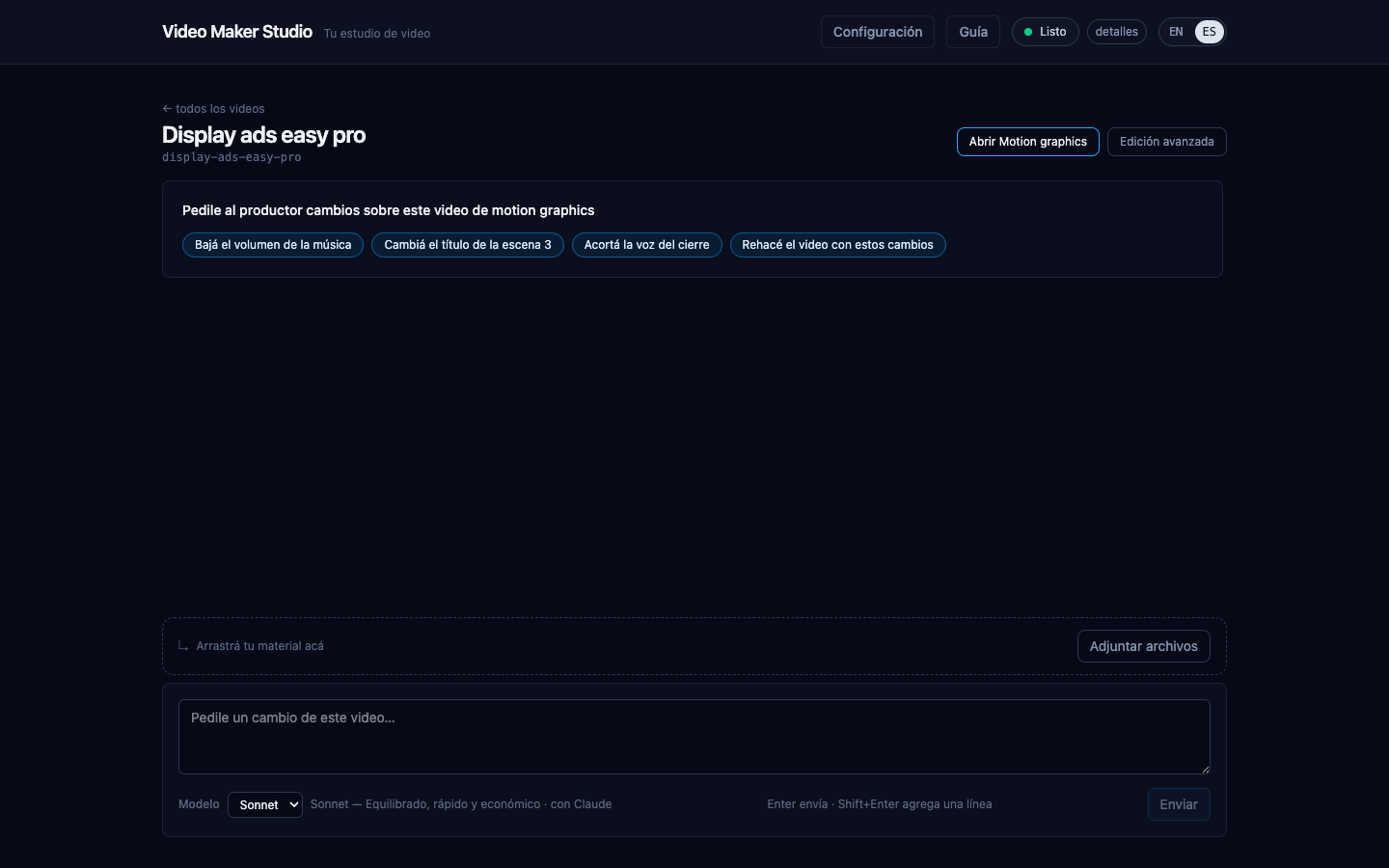
Remaking an adjusted video is quick: only the voice of the scenes whose text you changed is recorded again (lowering the music of a one-minute video takes a minute and a half). Every video has its own music volume; if it sounds loud, ask the producer to lower it.
The brand music is by Kevin MacLeod under a CC BY license: the credit is not drawn over the video, it appears
below the player (and in out/video.credits.txt) so you can paste it into the description of the
post — the license requires it.
Uploading material
Drag your files (recordings, camera, photos, music, logo) straight onto the conversation area, or use the "Attach files" button. For each file the producer suggests a role based on what it detects — it has a voice, it has no audio, it has transparency, it is a photo, its name mentions music — and you confirm or change the role before it is saved.
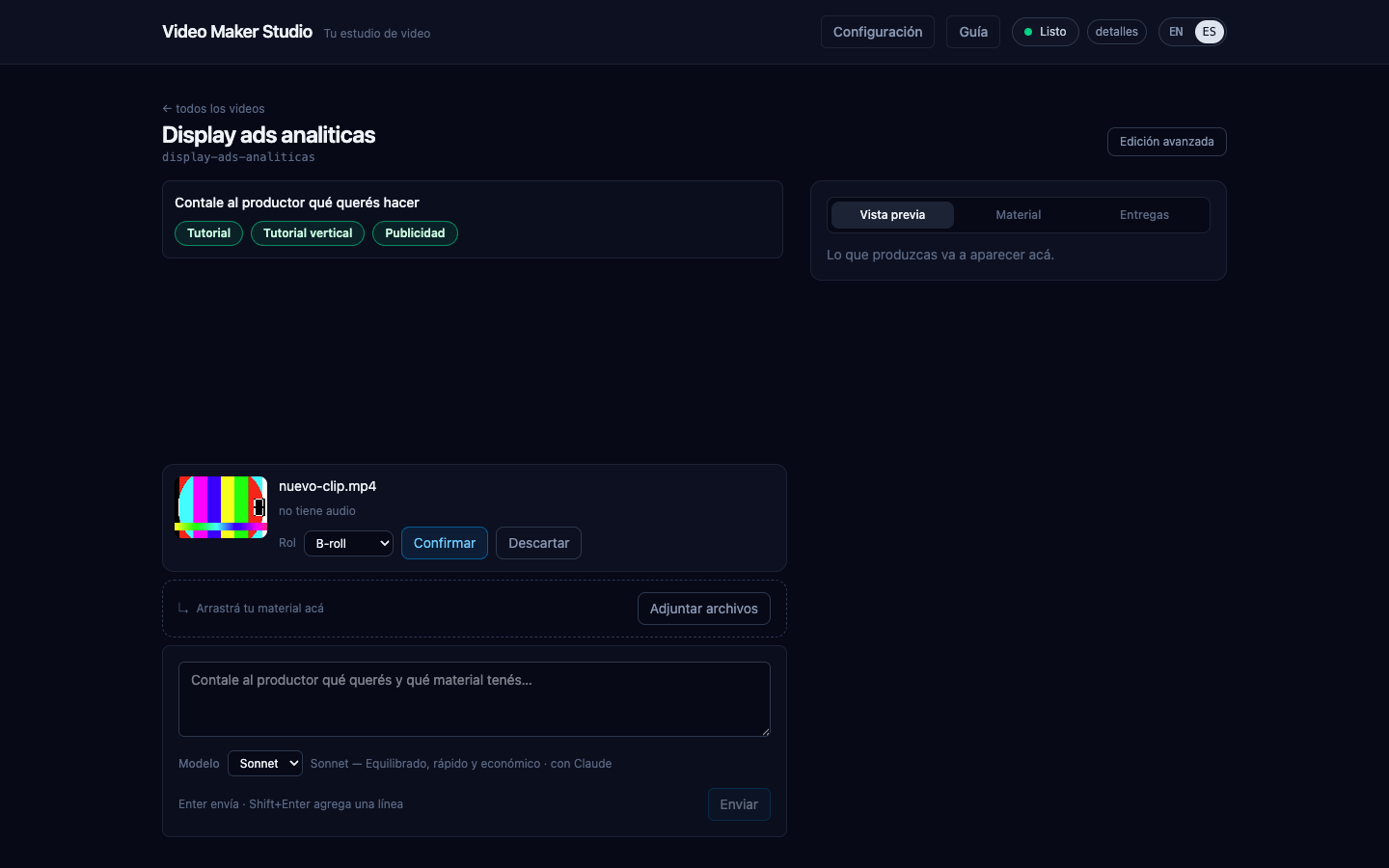
The producer can also look at the photos you uploaded — useful, for example, to build a better Product ad recipe from your own images.
Free material for B-roll
If you are short on footage, just ask the producer: something like "find free footage of city bikes" and it brings you video and photo options from Wikimedia Commons and the NASA library — only with free licenses for commercial use. Pick the one that works and it is imported like any other file of your material.
The credit of every file imported this way (author, source, license) is saved automatically in the project’s credits file — include it in the video description when you publish it.
Recipes (raw footage)
They are fine-tuned video templates: tell the producer which one you want (or just describe what you need and it picks) and it writes the script, the cut and the voice-over following that recipe. Three come built in: Tutorial (screen recording with synchronized narration, captions, soft music and logo), Vertical tutorial (the same recipe in 9:16 for Reels/TikTok/Shorts) and Product ad (a short 9:16 spot built from photos).
The Material tab
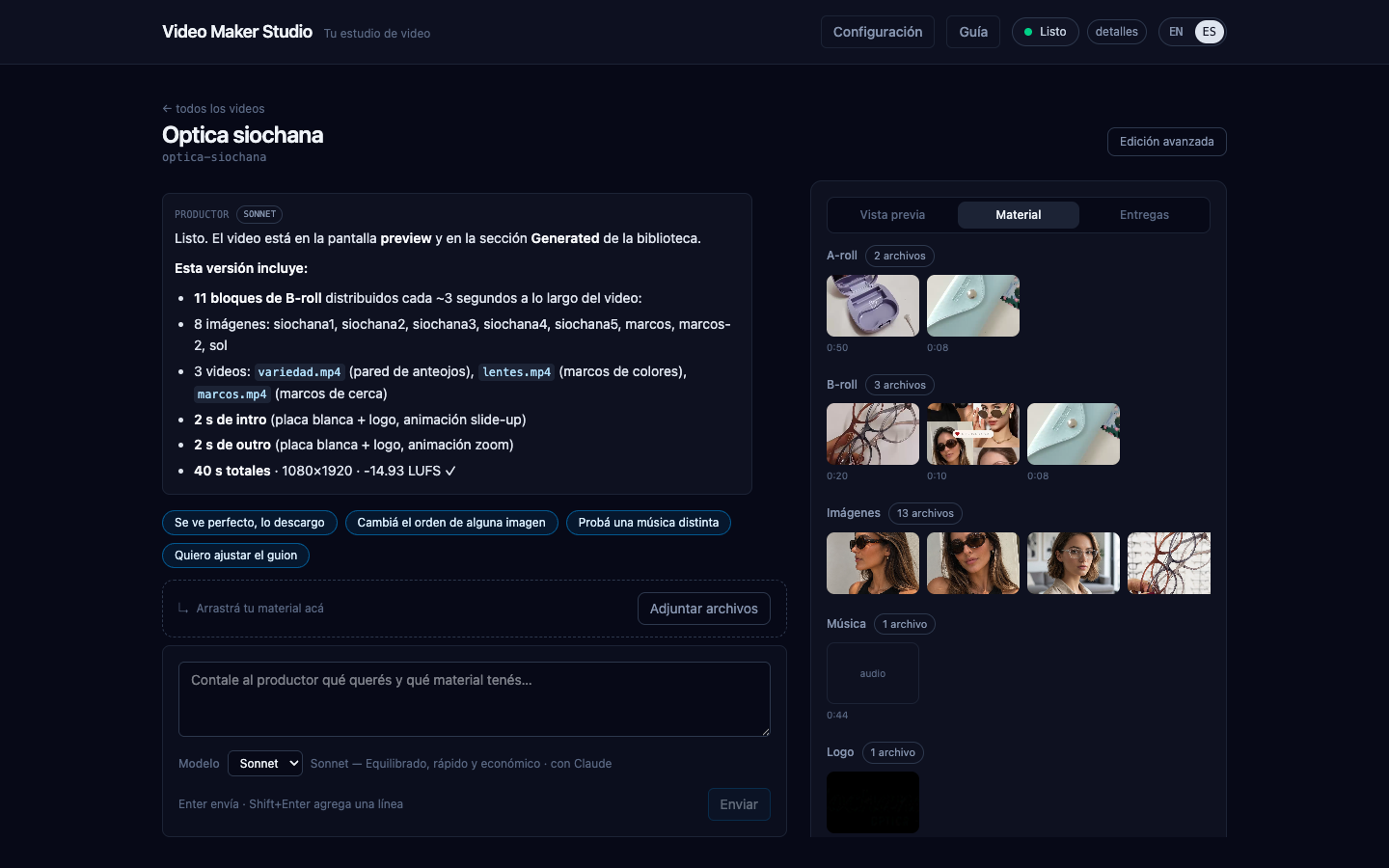
Next to the conversation, the "Material" tab groups everything confirmed by category (A-roll, B-roll, images, music, logo) with a thumbnail and the duration of each file — to see at a glance what the producer is working with.
Preview and Deliveries
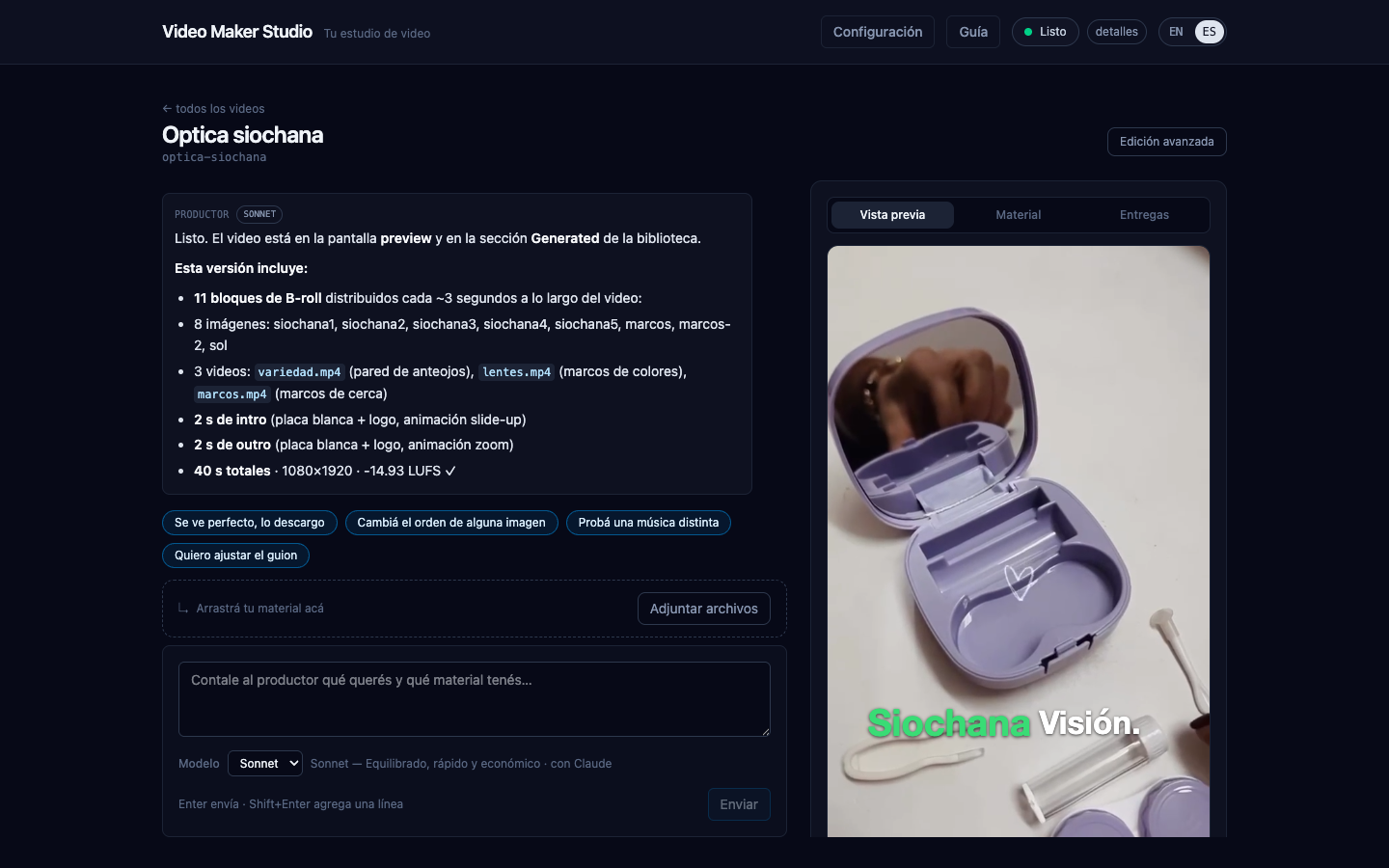
While the producer works, the "Preview" tab shows the latest render as soon as it finishes. When you confirm it, it also lands in "Deliveries", ready to play or open in Finder — earlier renders stay there too, they do not overwrite each other.
Publishing to YouTube
The studio uploads the finished video to your channel without leaving the app. You connect it once, in Settings › YouTube, with your own Google credential: in Google Cloud you create a project, enable the YouTube Data API v3 and create an OAuth client of type "Desktop app". You paste the client ID and secret, tap "Connect with YouTube", allow access in the Google window and come back: the channel shows up with its name and picture.
Then the "Publish on YouTube" button (in the preview, in Deliveries or on the Motion page) opens a dialog: pick the MP4, tap "Propose with the producer" so it writes the title, description (with the music credit) and tags, and edit them as you like. Choose the visibility (public, unlisted or private) or schedule a date — a scheduled video is uploaded as private and YouTube publishes it at that time. Before a public release the studio asks you to confirm which channel it goes to. The upload shows its progress, can be canceled or retried, and every published video is recorded in the project with its link.
Advanced editing
For when you want to get your hands dirty: the material library, the storyboard (script and word-by-word cuts), the voice page and the preview, all available from the section bar that comes with each project (producer, library, storyboard, voice and preview; a motion graphics video adds "motion"). In a motion graphics video those pages show the script, the voice and the video already generated, and to change something you ask the producer.